

country is equal to France to see only French revenue.
You can add filters to individual charts in the Explore view or apply them across all charts in a dashboard.
Developers can add permanent filters to tables using the
sql_filter yaml option. See Table configuration for details.Quick start
Adding filters in Explore view
Add filters to charts in three ways:- From the Filters tab: Click the Filters toggle, then
add filter - From the sidebar: Click the options menu on any field and select
add filter - From the results table: Click the three-dot menu on a column or click directly on a value
Adding filters to dashboards
Temporary filters (visible only to you):- Click
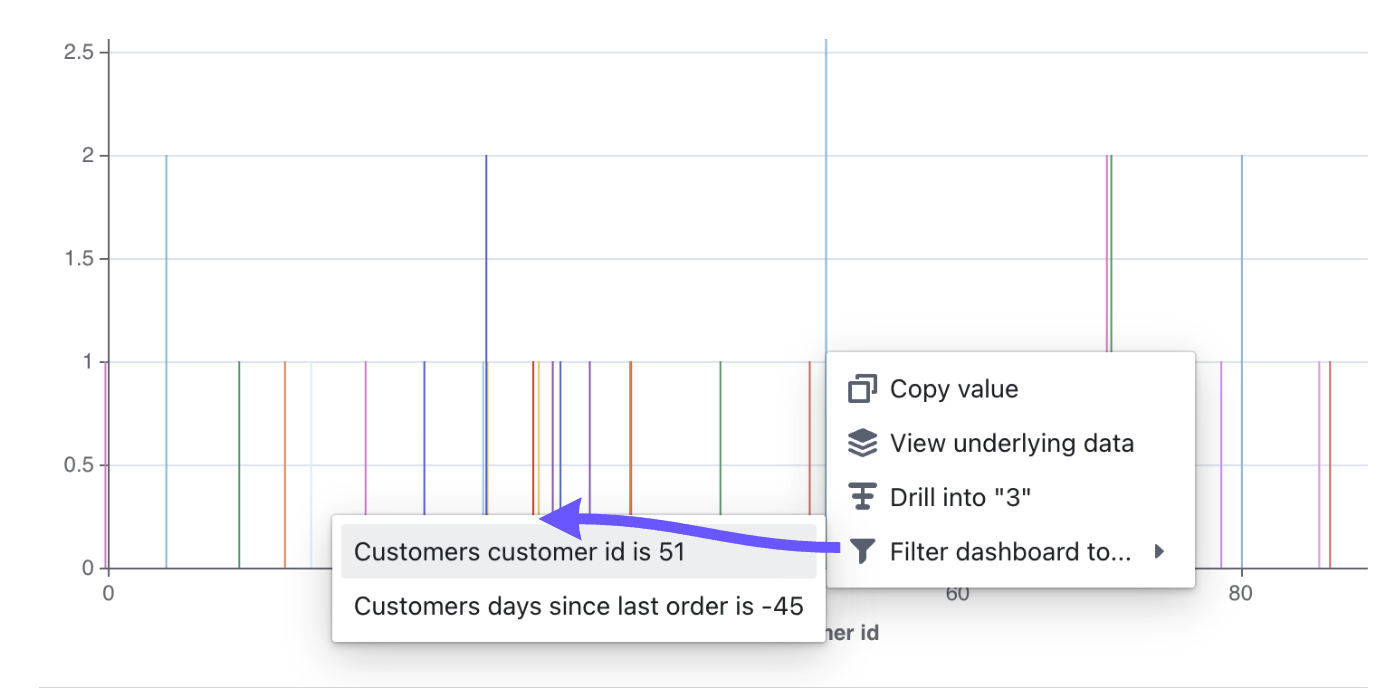
add filterwhile viewing the dashboard - Or use cross-filtering by clicking on chart values
- Enter edit mode by clicking
Edit Dashboard - Click
add filterand configure your filter - Click
Saveto apply the filter for all users
Filter capabilities reference
Multiple filters
| Feature | How to use |
|---|---|
| Add multiple filters | Click + Add filter |
| Combine with AND logic | Select ALL conditions from the dropdown |
| Combine with OR logic | Select ANY conditions from the dropdown |
| Add multiple values | Press enter between each value |
Nested filters
Create complex filter groups by converting a filter to a group:- Click the options button on the right side of any filter
- Select
convert to group - Add additional filters within the group

Filter types
For a complete list of available filter operators and their uses, see the filters reference documentation.Dashboard filters
Temporary vs saved filters
| Filter type | Visibility | When to use |
|---|---|---|
| Temporary | Only visible to you | Quick exploration without affecting others |
| Saved | Visible to all dashboard viewers | Set default filters for the entire team |
Temporary filter values are reverted when entering dashboard edit mode.
Adding temporary filters
Using the add filter button:- Click
add filterwhile viewing the dashboard - Select the field and value to filter by
- Optionally adjust which tiles the filter applies to in the
Tilestab
Adding saved filters
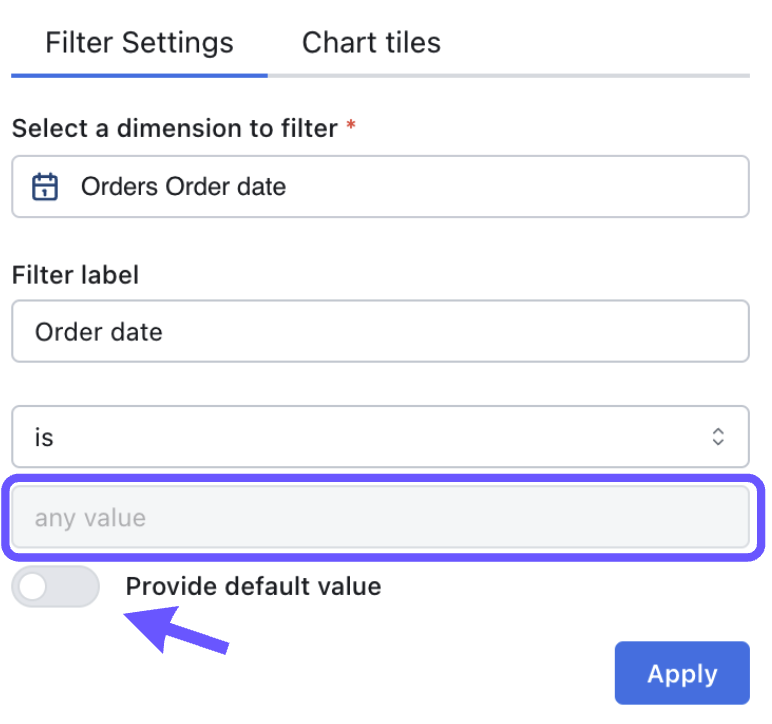
- Click
Edit Dashboardto enter edit mode - Click
add filterand select your field - Configure the filter:
- Leave value blank: Dashboard viewers can set their own values
- Set a default value: Toggle ‘Default value’ and specify the value
- Adjust tile application in the
Tilestab if needed - Click
Apply, thenSave
You must be an editor or admin to add saved filters.
Marking filters as required
You can require users to set a filter value before the dashboard runs:- Edit your filter
- Check “Require value for dashboard to run”
- Save the dashboard


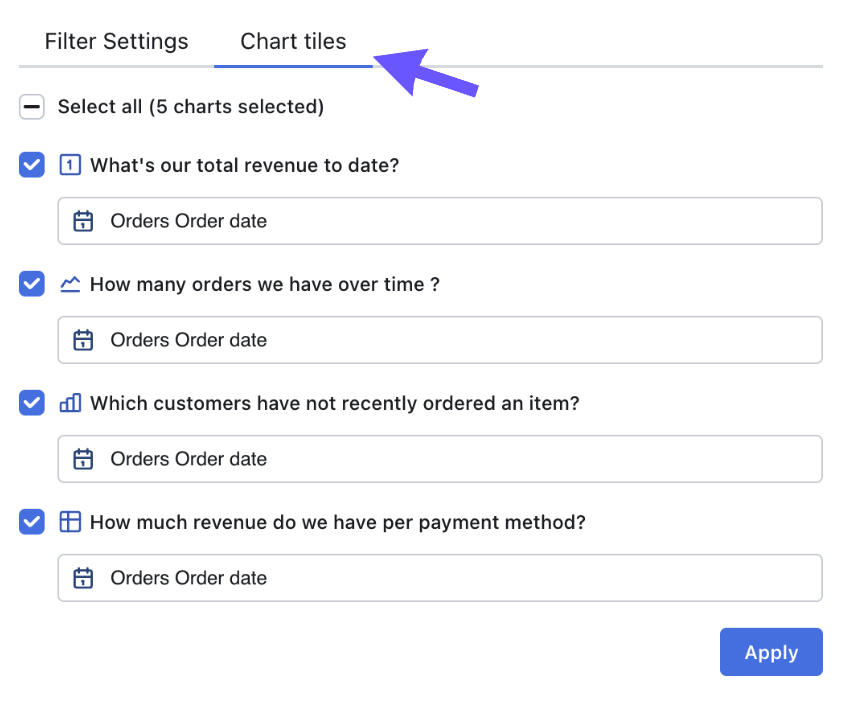
Controlling filter scope
Use theTiles tab in the filter configuration to:
- Remove the filter from specific tiles
- Change which field the filter applies to in each tile
SQL Runner chart filters
Dashboard filters work with SQL Runner charts in two ways: Mixed dashboards (Explorer + SQL Runner charts):- Create filters normally by selecting a field
- In the
Chart tilestab, apply the filter to SQL chart tiles and choose the column
- Choose a column from all available columns across charts
- Provide a filter label for clarity
- Select your operator and values
- By default, applies to all columns with the same name
Filters only apply to dimensions (non-aggregated columns) in SQL Runner charts.
Dashboard filter behavior
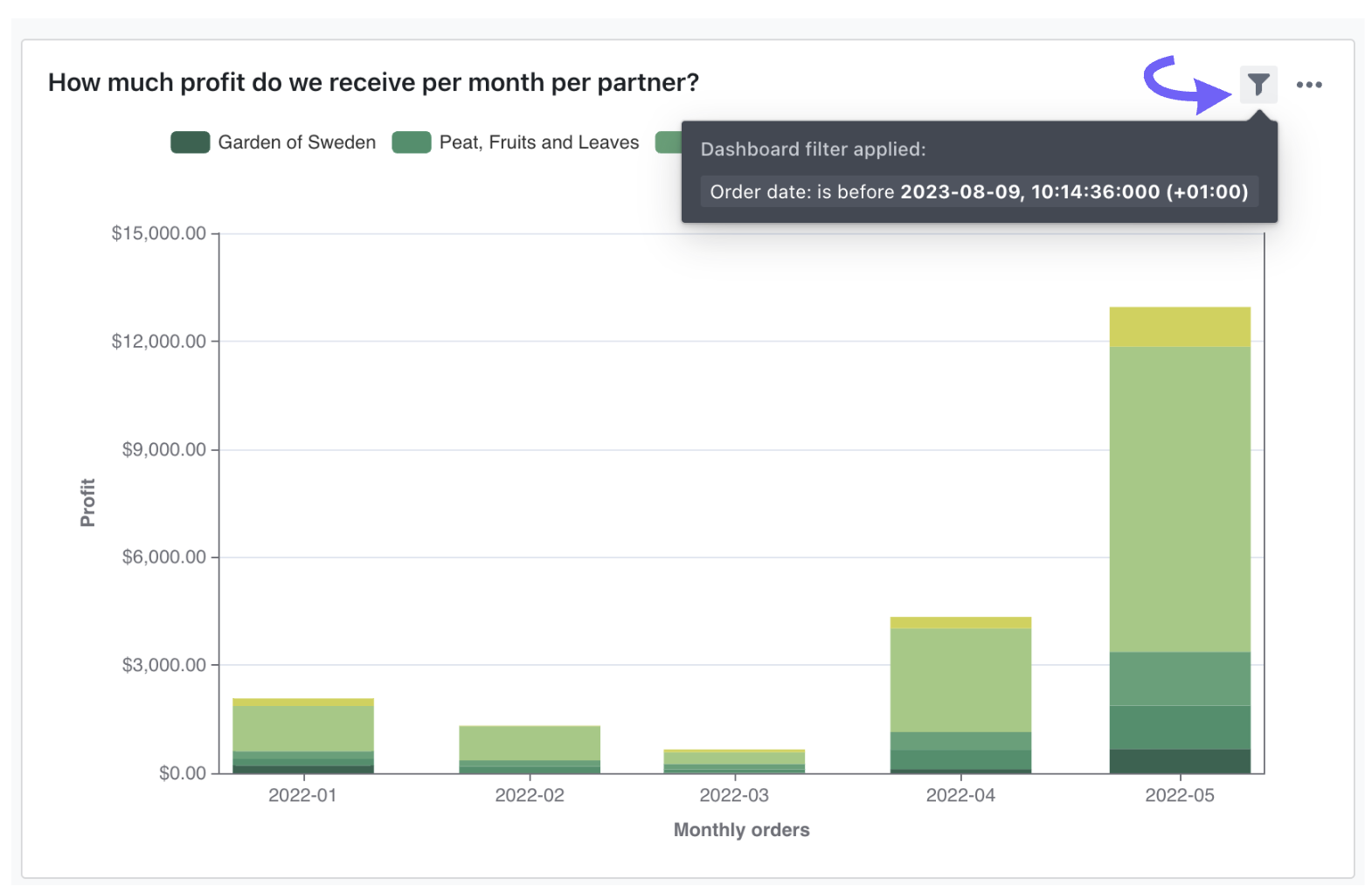
Filter visibility
Tiles with filters applied showdashboard filter applied text. Hover over this to see which specific filters are active.
Filter precedence
Dashboard filters override saved chart filters on the same field. Example: A saved chart filtered tocountry is China, India, Japan with a dashboard filter of country is India will only show India data.
When exploring from a dashboard:
Explore from herepreserves dashboard filter overridesEditshows the original chart filters
Sharing with filter overrides
Share dashboards with custom filter values from view mode:- Apply temporary filters or override saved filters
- Copy the URL to share with filters applied
- Temporary filters: Can change field, value, operator, and tiles
- Saved filter overrides: Can only change value and operator
- Saving changes in edit mode removes overrides
Filter autocomplete
Filter autocomplete considers all relevant filters from joined tables. Example:paymentsfields: considers filters from payments, orders, and customersordersfields: considers filters from orders and customerscustomersfields: considers filters from customers only